

 |


 這是FrontPage
與相容方法的舊版,已不再更新。FrontPage Version, Deprecated.
這是FrontPage
與相容方法的舊版,已不再更新。FrontPage Version, Deprecated.
 Expression Web, SharePoint
版方法,請按這裡。Go to Expression Web, SharePoint Version.
Expression Web, SharePoint
版方法,請按這裡。Go to Expression Web, SharePoint Version.
Warning: the
limitation of public computers
It may result in problems after many attempts.
4 Positions
Static: An element with position: static always has the
position the normal flow of the page gives it (a static element ignores any top,
bottom, left, or right declarations)
Absolute: An element with position: absolute is positioned at the specified
coordinates relative to its containing block. The element's position is
specified with the "left", "top", "right", and "bottom" properties
Fixed: An element with position: fixed is positioned at the specified
coordinates relative to the browser window. The element's position is specified
with the "left", "top", "right", and "bottom" properties. The element remains at
that position regardless of scrolling. Works in IE7 (strict mode)
Relative: An element with position: relative moves an element relative to its
normal position, so "left:20" adds 20 pixels to the element's LEFT position.
Absolute positioning is the most popular for Overlay.
You have to manually trigger the tool bars:
>View> Tool Bars
> Position Bar
> Picture Bar
Use the "Position Bar" to decide the place and use Arrows of the keyboard to
slightly adjust the exact position.
An example of the version from FrontPage is as follows:<span
style="position: absolute; left: 301; top: 99">
<span> is from <div> . The positions are complicated.
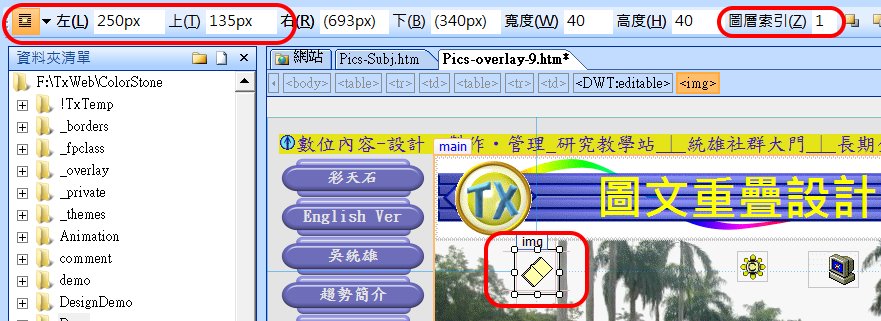
You want to change them into:<img border="0" src="../images/post.gif"
width="40" height="40" style="z-index: 1; position: absolute;
top: 135px; left: 250px"/>
Click the graphic to show the pictures
tool bar. Or click View-toolbars-pictures.
Drag other graphics to a blank space.
Click 'Position absolutely' , a
blue frame will appear, drag the frame to the
desired location.
Use 'Bring Forward' and 'Send Backward'
for multiple overlays.
You can use the 'z-index' attribute to
decide the layers of pictures.
You have to move the cursor out of all
pictures to view all layers. It will display only one picture, if the cursor
points at a certain layer's picture.
Or, you may go to the "HTML" and change all z-index as "z-index:
1".
Drag the blue frame to desired place then use blank lines to
adjust the space.
Absolute position is interactively affected by <div> and <img>
<div> will be displayed by a "blue frame". You have to
focus on the blue frame then drag it when the "cross arrow" appears. Use keyboard arrows for
slight moving.
The position is decided by the <div> while the size is decided by
the <img>.
You have to use <Enter> (blank lines) to adjust the space when
"Absolute" is employed.
If you have problem, use the follow syntax: (the "top" is a
variable)
<div style="position: absolute; top: 395px; left: 176px; width:
630px; height: 389px; z-index: 1">
Click the pictures, tool bar and the
text box will appear.
Edit text, font, size, location and color
in the box.
Use 'Table' to decide the location of the
main graphic.
Visual Language
Dynamics and Completion
Readability of the Overlap Area
Simplicity of the Overlap Objects
Colors Design
>HTML <img border="0" src="filename.gif" width="28" height="28"> Change the "width" and "height''. >View >Tool Bars >Picture Click >Re-sampling
 For SharePoint
 You have
to "DELETE" the <div> or <span> that was auto transformed by the previous
FrontPage version.
You have
to "DELETE" the <div> or <span> that was auto transformed by the previous
FrontPage version.
<img border="0" src="../images/post.gif" width="40" height="40"
style="z-index: 1; position: absolute; top: 135px; left:
250px"/></span>
For FrontPage 2003
Add Overlay Graphics
Main graphic with non-absolute position
Warning
Main graphic with absolute position
 Advanced
<img border="0" src="images/CoconutAve630.gif" width="630" height="389">
</div>
<div style="position: absolute; top: 435px; left: 234px; width: 49px; height:
35px; z-index: 1">
<img border="0" src="images/mail-to.gif&<img border="0" src="images/CoconutAve630.gif" width="630" height="389">
</div>
<div style="position: absolute; top: 435px; left: 234px; width: 49px; height:
35px; z-index: 1">
<img border="0" src="images/mail-to.gif" width="49" height="35" ></div>
<div style="position: absolute; top: 435px; left: 342px; width: 40px; height:
40px; z-index: 1">
<img border="0" src="images/post.gif" width="40" height="40"></div>
<div style="position: absolute; top: 437px; left: 507px; width: 32px; height:
32px; z-index: 1">
<img border="0" src="images/copyright.gif" width="32" height="32"></div>
<div style="position: absolute; top: 439px; left: 588px; width: 29px; height:
29px; z-index: 1">
<img border="0" src="images/WebComm-service.gif" width="29" height="29"></div>
Add Overlay Text
For Previous Versions of FrontPage
Final Examination
Download exercise files
Re-size the Graphics
