

EP/DTP Table Design Table Style 表格樣式
Setup a dedicated style for table title before you manage the table.
表格亦應有一套專屬樣式,如:表格標題、列標題、欄標題、表格內文等。可以先作,也可以在設計完一個標準表後再作。並可利用「表格與文字互轉」功能,改變不同樣式、甚至在不同軟體內呈現。
表格與文字互轉
所有微軟的 office 軟體,都具備表格與文字互轉功能。
表格轉換為文字
選擇待轉換為文字之表格:滑鼠點選表格左上 + 號。
〉表格工具
〉版面配置
〉轉換為文字

通常選擇〈定位點〉,視個案作其他選擇亦可。

轉換為文字如下。

文字轉換為表格
將以上文字,再轉換為表格。
〉表格
〉文字轉換為表格

下拉範本選單,選擇一種較簡單的基本款再修改。
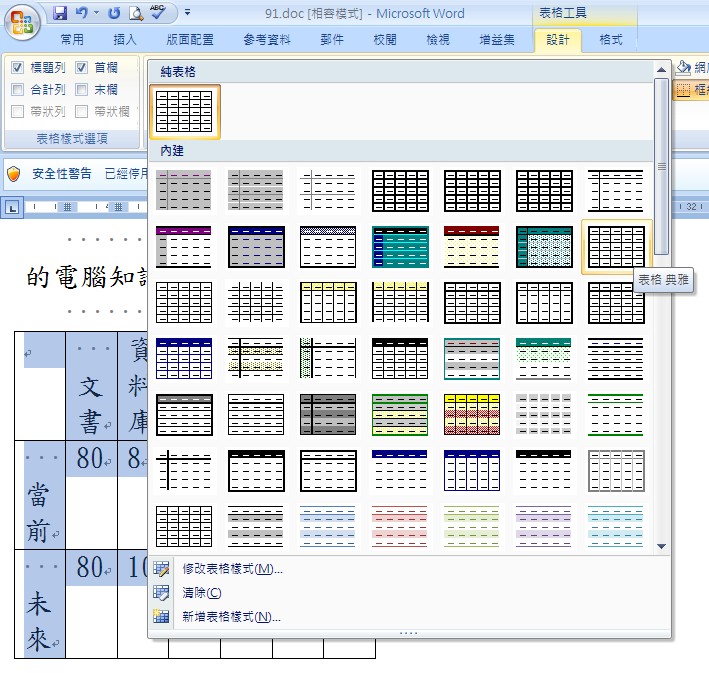
Use "Draft Mode" to modify table. Leave a blank line to make it easier.
如果作自由定位,且格式較複雜,可在獨立檔案中作好,再貼到主檔案。
若格式簡單,可直接作;但主檔如有分欄,宜在「草稿」模式下設計。生手宜上下留1行。

Right click to resize the table. Make its length around 1.5 times to the column.
如果作破欄設計,比例宜大方,如表格寬度為欄的1.5倍。

Mark both the title and table and add on "Text Block".
注意:外加文字框,Word 翻譯得很彆扭,稱為「繪製」。

Use the "squares" to adjust table's shape.

Use "double cross" to move to the position. For slight adjustment, use <Ctrl> + <arrows keys>
利用鍵盤微調

Right click to set up its formats. We do not want too many redundant lines.
最後將文字方塊的邊框取消,避免框頂框。
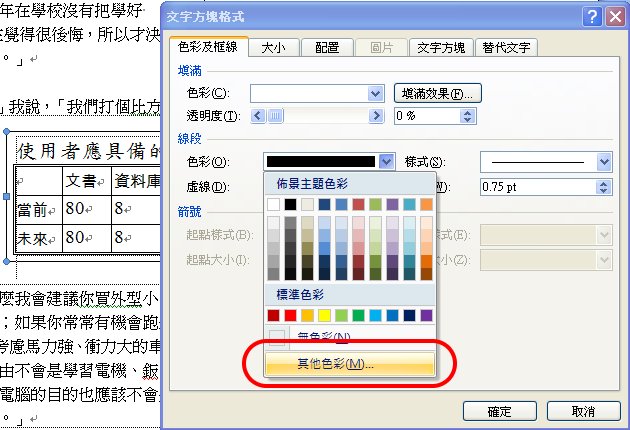
Wrap 文繞圖
表格內容
>文繞圖
>位置
>垂直-相對於
段落:最正常選項。
 但Word有時會自動亂跳到「邊界」選項,即移到頁首天界。若是「頁面」選項,則是紙的邊緣。
若不勾「隨段落文字移動」,會變成固定位置。

 Word
2003
Word
2003
Formatting
Convert text into table format.
You may choose a simple format from the 'Table Template' then modify it later.

Embed the table into a text box.

Modify the table and move it to the right place.
For slight adjustment, use <Ctrl> + <arrows keys>


