

MS Web Design Tools Expression Web/ SharePoint Designer
微軟網站/網群編輯器 MS/EW/SD
工具篇介述各種網站和網路社群的開發工具,分為語言層次和軟體層次工具。語言層次工具通常又包括3類:HTML,CSS,DOM/Java。在軟體層次的各種編輯器方面,當前為配合微軟教學上的優勢,本篇講述微軟的網站開發軟體 Expression Web/SharePoint Designer,兼及其前代 FrontPage。
 Expression Web 免費下載 合法正版
SharePoint
Designer 免費下載 合法正版
Start 網站建站與網頁製作第一步
 Expression Web/SharePoint Designer
Expression Web/SharePoint Designer 教學範例。
簡捷網站建站程序
正規的網站建站基本程序,應是以從建立第一個空白站起,至達成「網站動態範本」止,而簡捷網站建站程序則是由提供一個「網站動態範本」起,以「個人化修改」的方式,達成建站。
統雄老師系列講義中,有「黃底標題」者,就是「簡捷網站建站」的核心程序。
以認識「優化網站」、保留未來從事網站工作者,適合簡捷網站建站程序。
而以網站工作為生涯發展者,適合正規網站建站基本程序。
正規網站建站基本程序
Download a GCot Template to get used to the UI and Settings
〉檔案
〉開啟網站
〉檢視
〉資料夾清單
介面簡介
修改內文
修改標幟
修改連結
在瀏覽器中預覽
〉網站TAB
〉導覽檢視
建立新網站
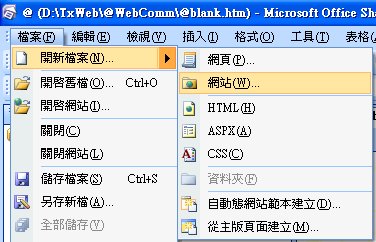
Choose the path for a new site.
Type in the name for the 'NewSite'.
 Warning: "Add
to the Current Web" is a very confusing caption that really means to "publish"
the current opened local web to the target web as a sub-web and "folder".
Warning: "Add
to the Current Web" is a very confusing caption that really means to "publish"
the current opened local web to the target web as a sub-web and "folder".
Do not check it that is the best choice for most of situations.
〉網站
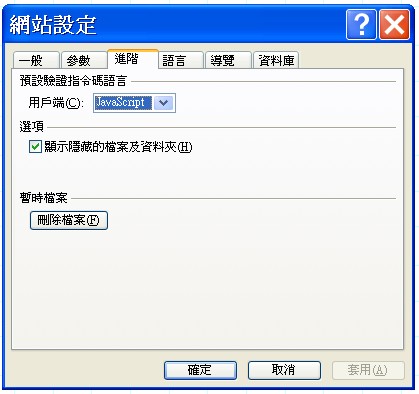
〉網站設定
Warning: You want to choose 'Chinese' of "Language" when you are editing pages with a workgroup. Otherwise, you may have encoding problems, if someone else uses another text editor. However, the previous pages before the change will remain the old setting such as utf-8 and you need to change them manually.
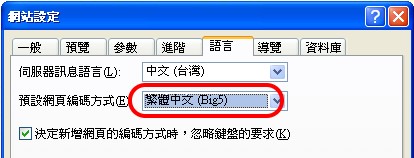
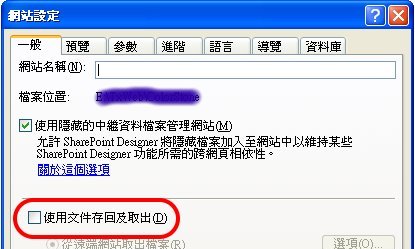
 Documents Retrieval
This advanced option is for remote processing, collaborative workgroup and versions control.
Uncheck it, if you are not in above situation.
You may directly modify remote files instead of publishing local files.
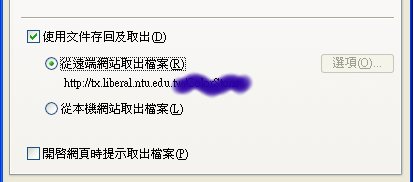
You may also use it, if there is a workgroup working on a same local host.
Check the alarm to control the versions of files.
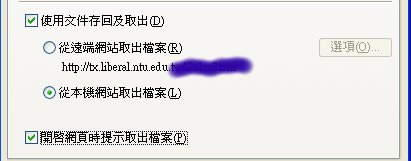
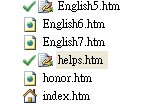
The icon of the modified files will change to a "select" symbol.
>Tools 工具
在〈工具〉命令中,建議修改的設定。
>Options of Applications
〉應用程式選項
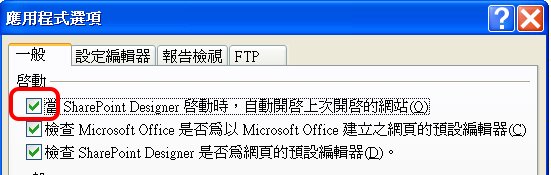
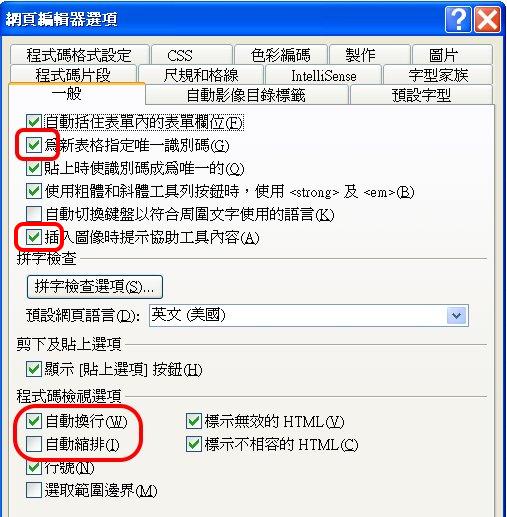
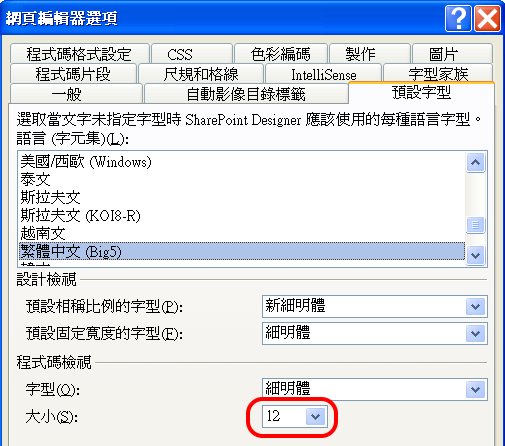
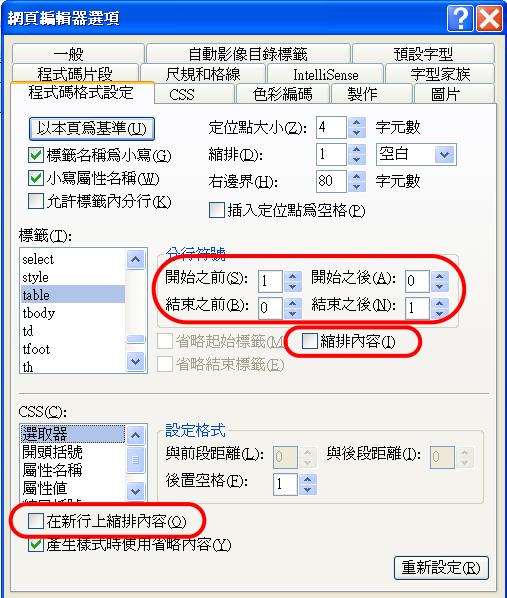
>Options of Page Editor
〉網頁編輯器選項
預設為縮排,但可能造成視覺混亂。統雄老師建議程式段落以前後空行,代替縮排。
FrontPage 的介面
舊版介面不同,如下所示。可按此跳到下一節。
>File Professional Tips
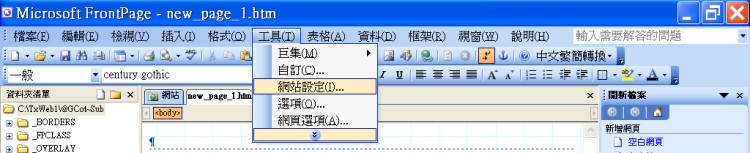
>Options for Applications
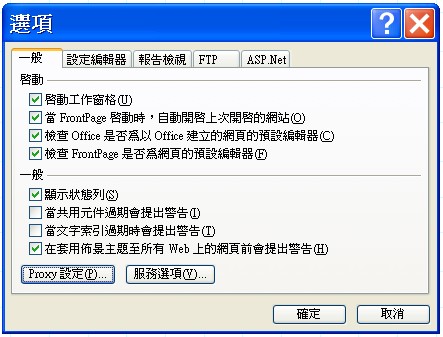
>Options of Page Editor
上傳設計成果
You want to prepare a storage to save your exercise step by step and to use a large capacity storage other than a floppy disc.
注意:如果要將範本網站轉為個人網站,不能以複製、更名方式;必須先建立個人空白網站,再將範本網站以「發布網站」方式發布到個人網站。
 網站複製均以「發布」方式為宜,若一定要用複製方式,檔案總管必須打開隱藏檔。
〉檔案
〉發布網站
〈遠端網站內容〉
〉遠端網站位置:ftp://tx.liberal.ntu.edu.tw:******
〉HTTP 位置:英文名稱
〈使用者登入〉
進階應用
Convert Folder to Web 將資料夾轉為網站
>New
>Web
>Import Web Wizard
It will proceed 2 parts:
1. Set the now web to an existing fold and it will convert the folder into a web.
2. Choose a source web/folder. It is the same as "Publish Web" and you may pass it.
除錯程式的錯誤
SharePoint
Designer's Bugs of Very Large Site Design
SharePoint Designer
大型網站除錯程式的嚴重錯誤
SP 的互動編輯與除錯程式(IDE) 會與其版本管理、動態網頁管理、與 Office 的英文排字檢查衝突,造成嚴重程式碼錯亂。不過,這是大型、雙語網站會發生的情況,小型、單語網站較少發生。
現象:從〈程式碼〉介面轉為〈設計〉介面時,游標變成漏斗狀,就是在進行自動除錯。這時切莫作任何編輯動作!
回到〈程式碼〉介面,出現黃色除錯區域,但事實上,是將正確程式亂刪、亂增。如果再轉為〈設計〉介面,會發現頁面並無錯誤,也就是發生轉為〈設計〉介面和〈程式碼〉介面不同步,而〈程式碼〉介面的display-呈現並非實況。
更危險的情況是:沒有自動除錯現象-也就是沒有明顯警示,但在〈設計〉介面作選取,轉到程式碼〉介面,卻發現選取的區塊不同,這也是〈設計〉介面和〈程式碼〉介面不同步了。
錯誤動作:進行編輯、修改,再次儲存時,會存成〈程式碼〉介面的錯誤結果,而且救不回來。
修正動作
不要對內文作任何修改
停留在〈設計〉介面
>檢視
> 重新整理
再檢查,應可發現〈設計〉介面和〈程式碼〉介面恢復同步了。
最後手段:如果曾經不小心在介面錯誤時編輯且誤存,有可能無法完全修正。所以必須經常保存備分檔,修正備分檔後,再存為原始檔。
Warning: SP, as
many of MS's products, is not reliable enough. Remember to save your work
frequently, otherwise, you may lose all of your work by a sudden crash.
Warning: SP's Design View is not full precise
yet. <span class="center">, <div class="center"> and other situations may look
wrong in Design View mode. You want to check the pages in the browsers instead
of inside SP.
Warning: Though SP is the extended version of FP, its purpose is to develop
Windows SharePoint Services (WSS) . WSS is only provided for Microsoft
servers and cannot be deployed on any other OS. Thus, some functions of SP are
not working on PC.
Warning: SP's cache management keeps bugs. It may pull out a wrong, deleted, old
version of a page when you want to modify it. Close it then
refresh/reopen it that will
help. It is a good idea to refresh the web every time after major change!
An introduction to the "Code View"
從〈程式碼〉檢視,介紹HTML 的結構與功能。


