Auto Contents
加入自動目錄
 數位出版設計:自動化篇-知識美學/數位美學之建構方法
真正的雜誌常會單獨設計1頁,但我們的習作可能頁數太少,所以可在同頁上安排以下其他文章、圖文框等,譬如「編者的話」。
 Word
2007 and After
Word
2007 and After
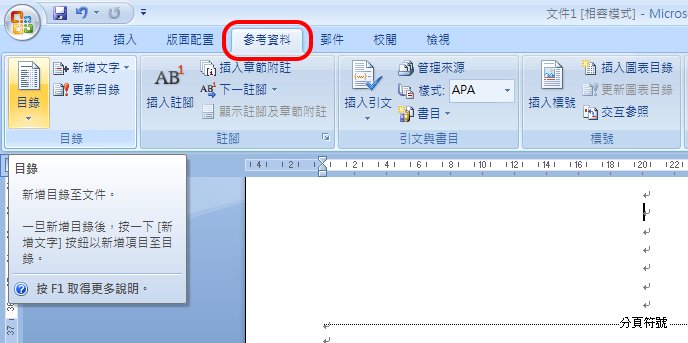
參考資料標籤
目錄設定在「參考資料」標籤內。
>Reference
>Table of contents
個人化目錄設定
>Insert table of contents
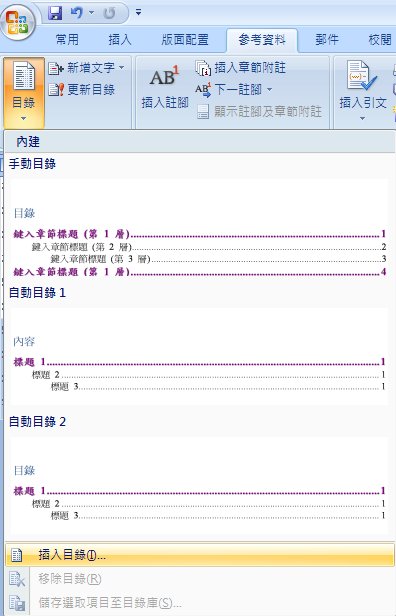
The following steps is the same as Word 2003
Word
2003
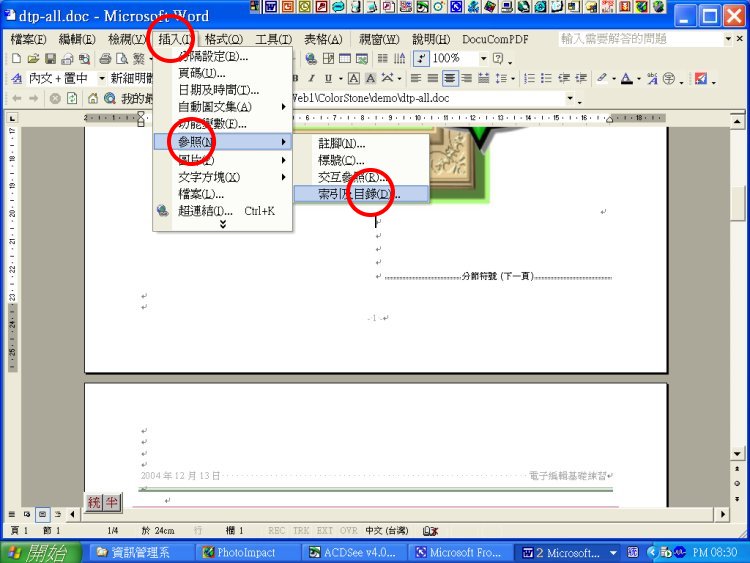
It is an exercise. For real publication, we do not insert contents on cover.
>Insert >Cross Reference >Index and Contents
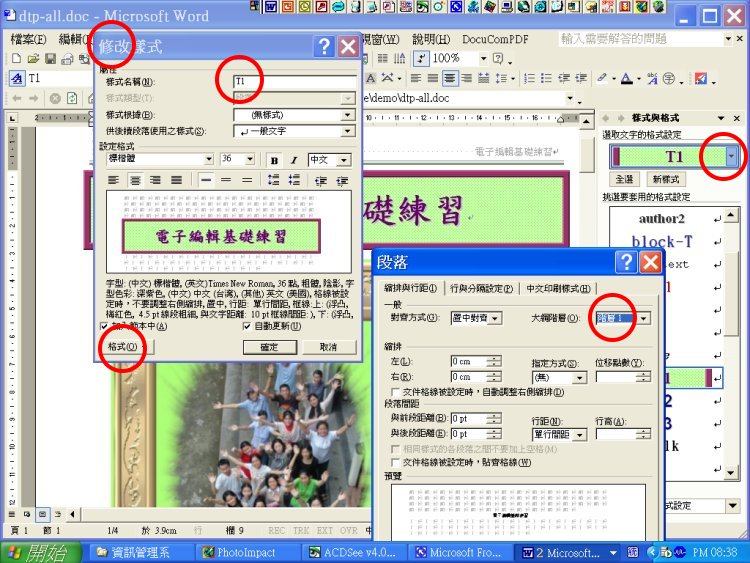
檢查樣式階層
Confirm the contents belong to the first level of outlines.
確認目錄所出現的樣式階層。如果先行設計都完全正確,本步驟可跳過。
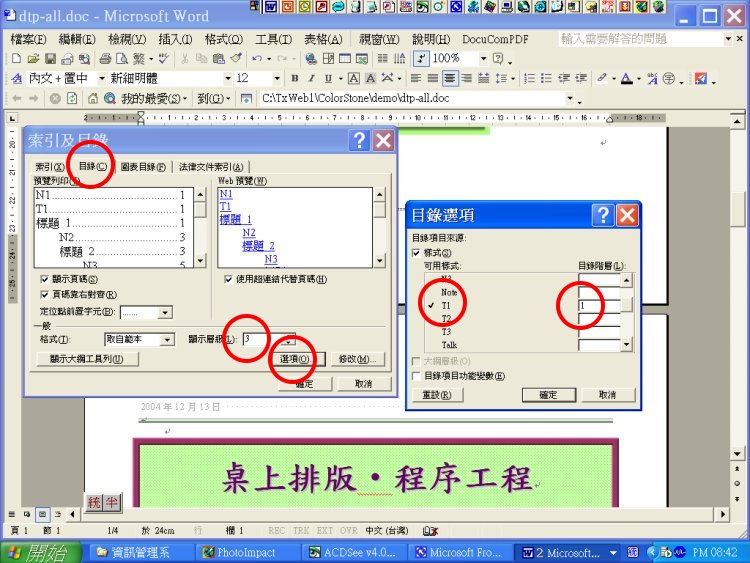
決定目錄顯示階層
>Contents
Change the 'level list' (default is 3) to desired level such as 1.
>Options
Advanced arrangement. Leave the desired style and delete the numbers you do not want.
「目錄選項」會列出系統與自訂樣式的預設階層,可決定目錄要顯示的階層,若刪除數字,就不會顯示。
在這裡可以調整階層,譬如決定把「編者的話」設為Block-T,就把Block-T的格內填入1。
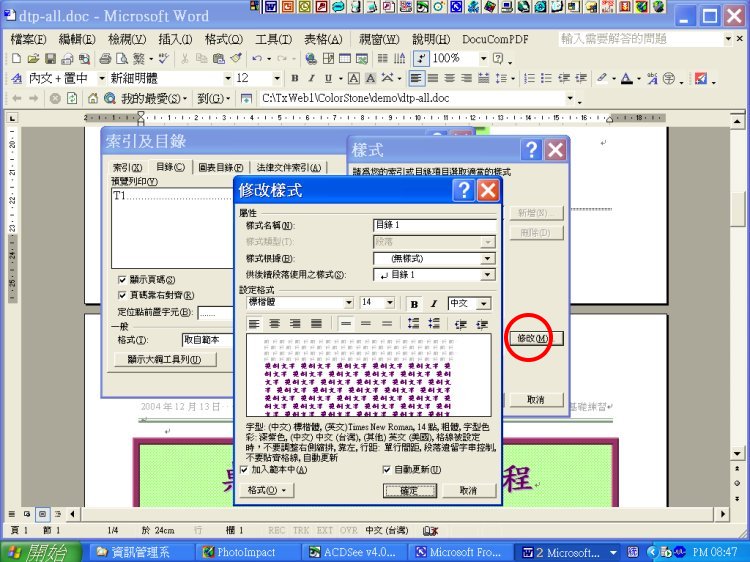
修改目錄樣式
>Modify
Design the style of contents.
可修改目錄的樣式。
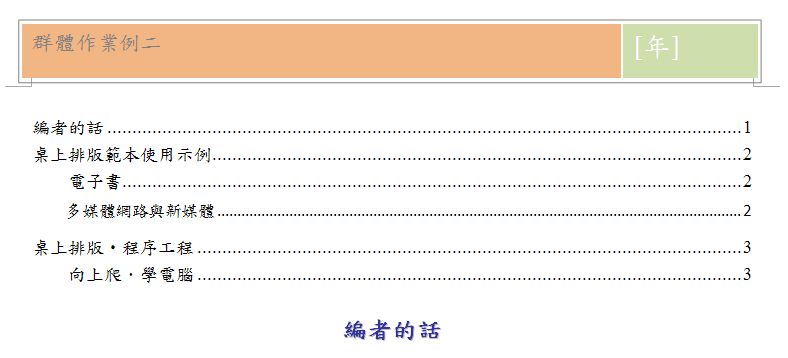
結果呈現與修改
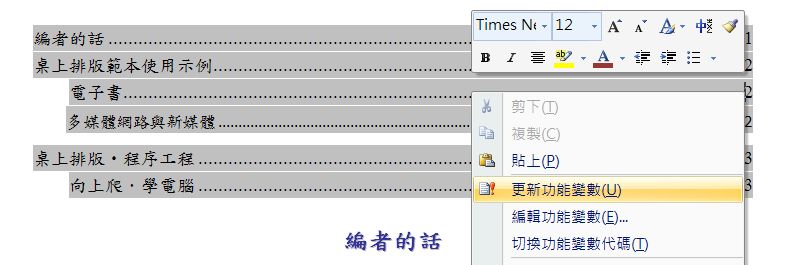
如果要修改,滑鼠點目錄區,呈現灰底,再重複以上步驟,重頭開始。
 更新目錄編號
在目錄區,按右鍵,選:
〉更新功能變數