

Midi 製作
Sonar 編曲與錄音
Sonar Settings
Record MIDI tracks from MIDI instruments
Use loop recording
Use punch recording
Transposing
Post-Production
Opening a Project File
Convert system file into .mid file, if any
Track View
 Hide or show the Track/Bus
Inspector
Hide or show the Track/Bus
Inspector
Press <i> on your keyboard.
Positioning
Click any track, then + <F>
Set up tracks
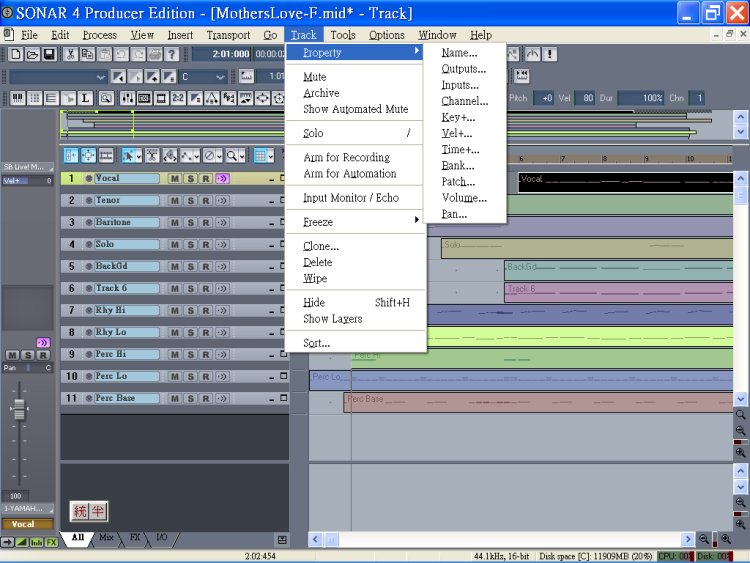
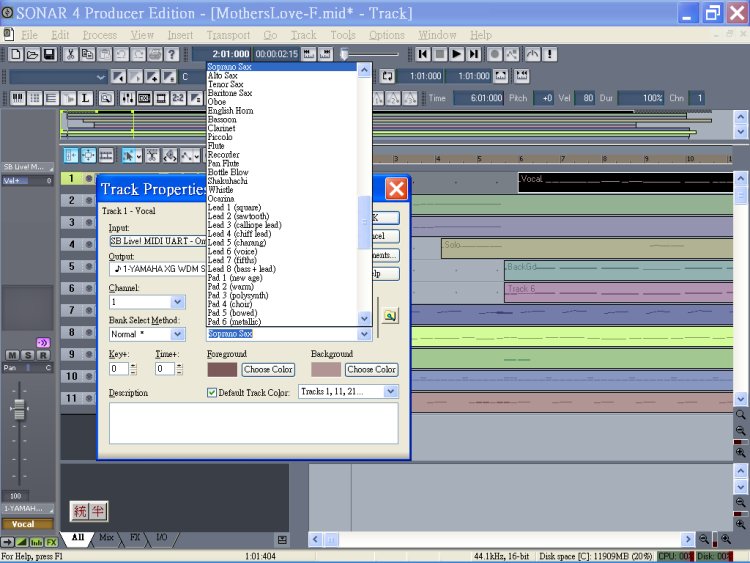
Properties
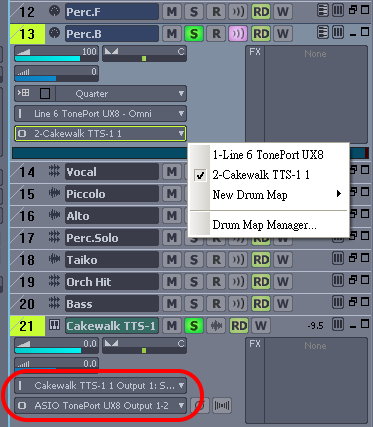
 Output to Synth-Track with External Audio Interface
You may choose midi solo track(s) output to synth track(TTS-1), and the [S] of the synth track will be automatically on.
The synth track must be input from TTS-1(or other synths) and output to the audio interface (or sound card).
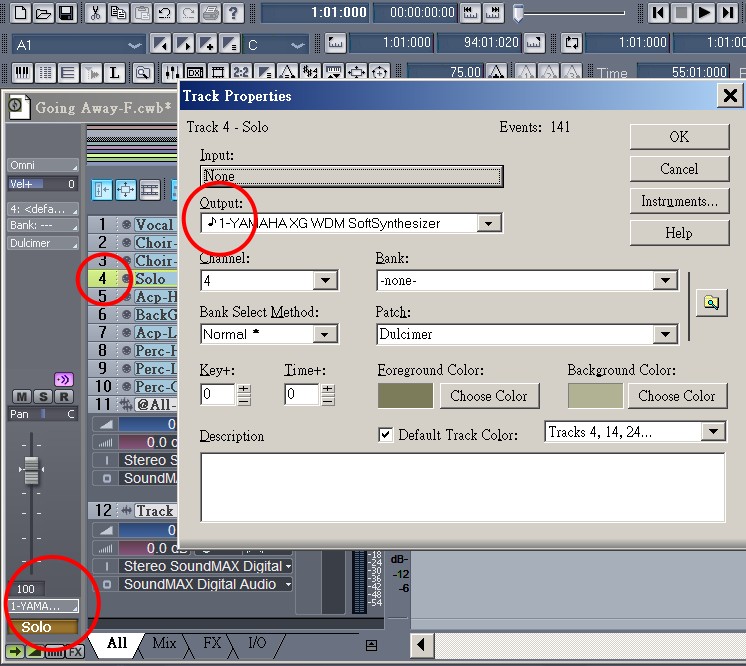
Output to Synth-Midi Device
All midi tracks output to Yamaha. Track 4 is an example.
Editing tracks
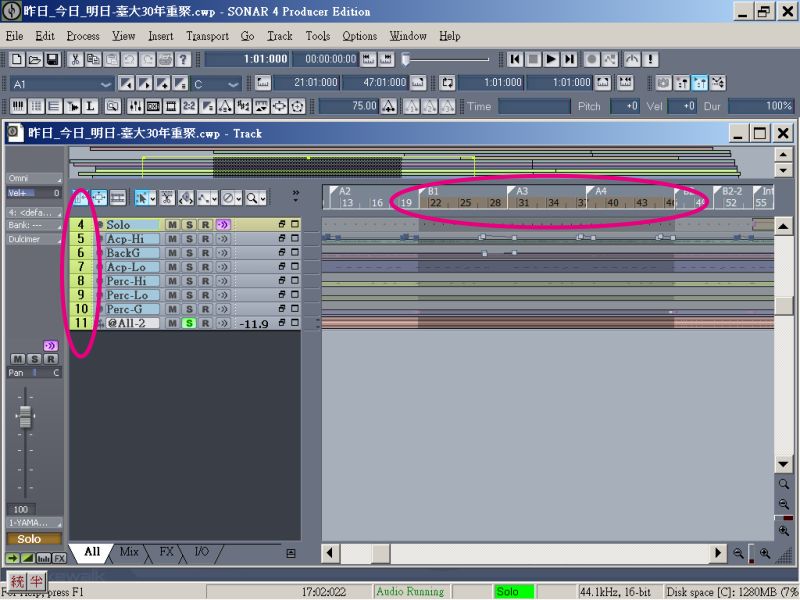
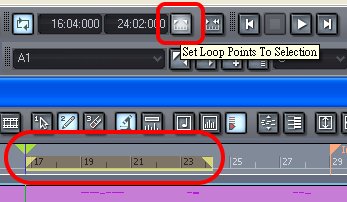
Loop/ Audio Shuttle
Envelope and Automation
Midi Effect
Right click >Insert Effects
>Midi Effects
Choose a plug-in.
Reverb is the most useful choice.
Group
Control Group
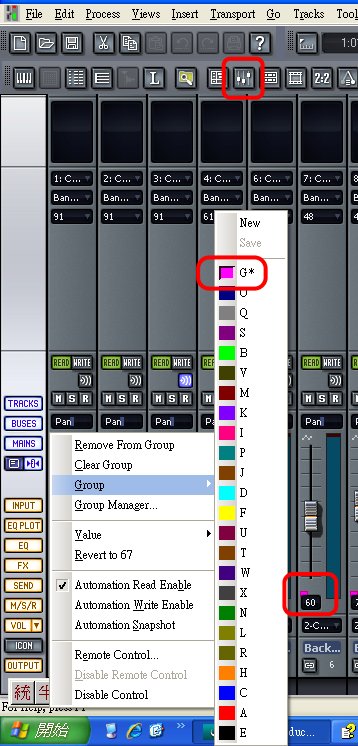
Right click on a control (fader, pan...etc.)
>Group
Select a specific color for each group.
Quick Group
Select the striper on the up left corner of the track to organize quick group.
<Ctrl> and <Shift> are also applicable.
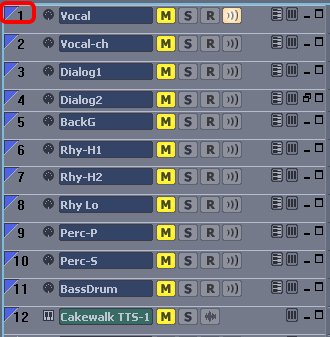
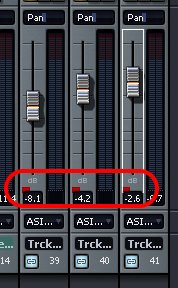
Then, go to the 'Console View".
Sonar will make them into same group (red).
Staff View
Use double arrows icon to show/hide staffs.
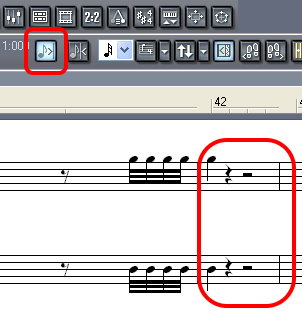
Click 'Trim duration' to display correct notes.
This view does not provide 'silence' notes, you got use the position to decide the silences.
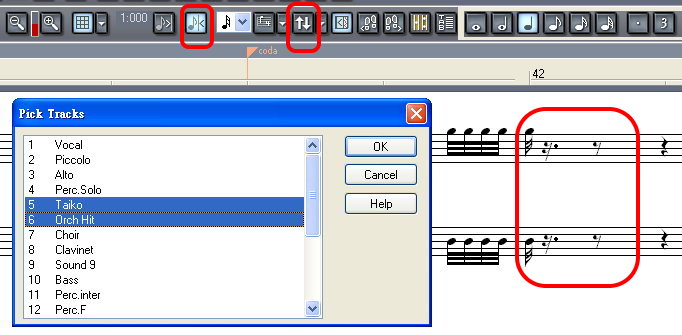
It will be confused as follows, if 'Full duration' is on.
Staff View is for minor modifications, it is not recommended for composing.
Piano Roll View is better for deliberation.
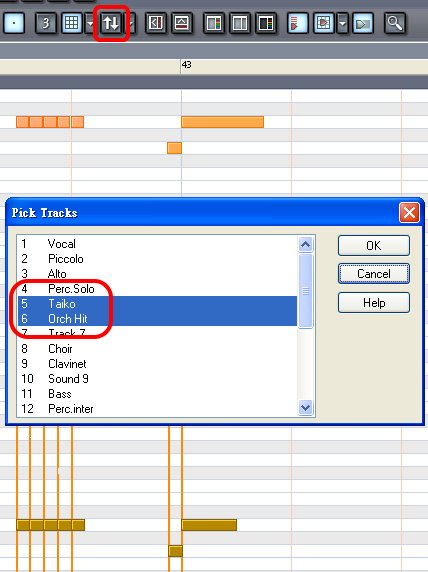
Piano Roll View
The same icon for setting tracks.
Event Inspector
The Event Inspector toolbar is available from the View menu by selecting Views-Toolbars and checking Event Inspector in the Toolbars dialog. The Event Inspector has the following:
To Display a Note's Properties in the Event Inspector Toolbar
If you select multiple notes, the Event Inspector toolbar displays the note value if all selected note values are the same. If the note values are different, the Event Inspector does not display anything.
To Change a Note's Properties Using the Event Inspector Toolbar
- Select a note.
- In the appropriate Event Inspector toolbar field, change the value. See the table below for a description of valid value entries for each field in the Event Inspector toolbar.

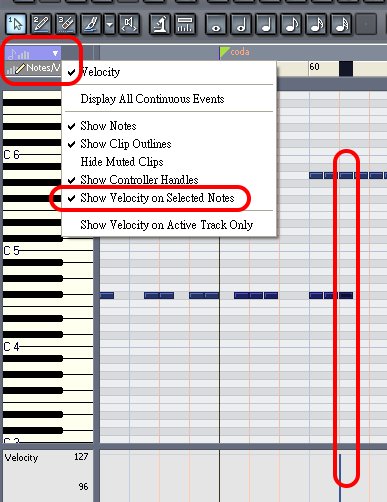
Velocity
This setting is very useful for multiple notes sharing a same velocity. Then you may use "select" and "pencil" tools to modify each note.
Inline PRV
Click the "PRV Mode" icon will embed the PRV into Tack View
Bounce to Audio


