

數位樂譜 Overture 記譜法‧頻道視窗設定
Digital Notation Methods‧Tracks Windows Settings
Overture 記譜法 Notation Methods - 字中有聲 - Grace Notes 數位裝飾音 - Tracks Window Settings 頻道視窗設定 - 分軌與併軌
Overture 旋律創作記譜法 Melody Notation Methods
File
>New
插入 5 線譜 Stave。
>Title
出現〈Title Page Text〉視窗
>X, Y offset
可依座標移位。
>Footer
>Font
可加入參數,如 #P 表示頁數。
>Score
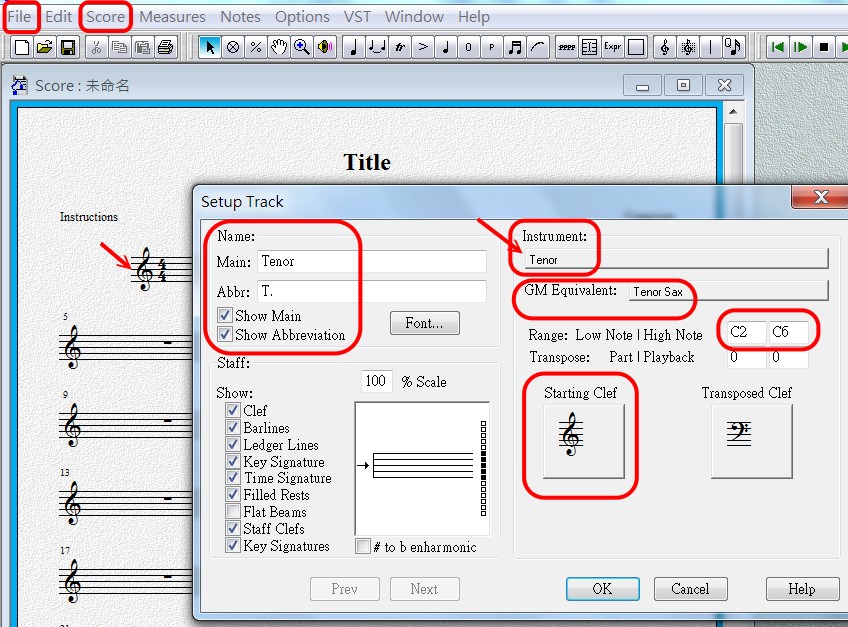
>Setup Track
或點擊「頻道名稱區」(譜表頭)。
Setup Track or click the track name.
Instruments 樂器設定
旋律是人聲,此處設男高音 Tenor。
左側「樂器名稱 Name」會自動出現名稱與縮寫。
勾選:在首頁顯示全名、在各頁顯示繕寫。
GM Equivalent / GM 樂器設定
Overture 會將人聲自動設為合成人聲,並不建議。
通常以管樂器擬人聲,按照歌曲意涵選擇,這裡設 Tenor Sax。
 GM 樂器設定必須配合Tracks Window
GM 樂器設定必須配合 Tracks Window,在 Patch 中設定,否則只會演奏鋼琴音色。
V5 實體樂器自動移調
V5 輸出分譜時,會依據實體樂器的調號自動移調,所以設人聲的旋律,要設 C 調樂器,避免黑管等。
Range 音域設定
因數位音樂不受實體樂器限制,通常會擴大。
Starting Clef 譜號
Overture 會依 4/8 部人聲觀念,自動將男高音 Tenor 設為低音,但作為 1 部歌曲,還是宜改為高音。
聲中有字‧字中有聲之數位技術
V4: Notes, Groups 工具
V4 以圖示方式呈現。
V5: Tools Panel 工具面板
>Symbols
再選 Notes, Groups 與其他工具。
聲中有字,就是旋律還是要表現歌詞中字的存在,亦即旋律必須與字的「聲調」相符,不至於誤聽為其他字。技術上就是以「數位裝飾音」-通常為 16 分音符 -達成「聲中有字‧字中有聲」的效果。
手寫譜的「裝飾音」是一種提示,在視覺上並不占時值,也經常會簡化不寫,數位譜則必須算準時值與拍子。
四聲記譜:播放實質呈現
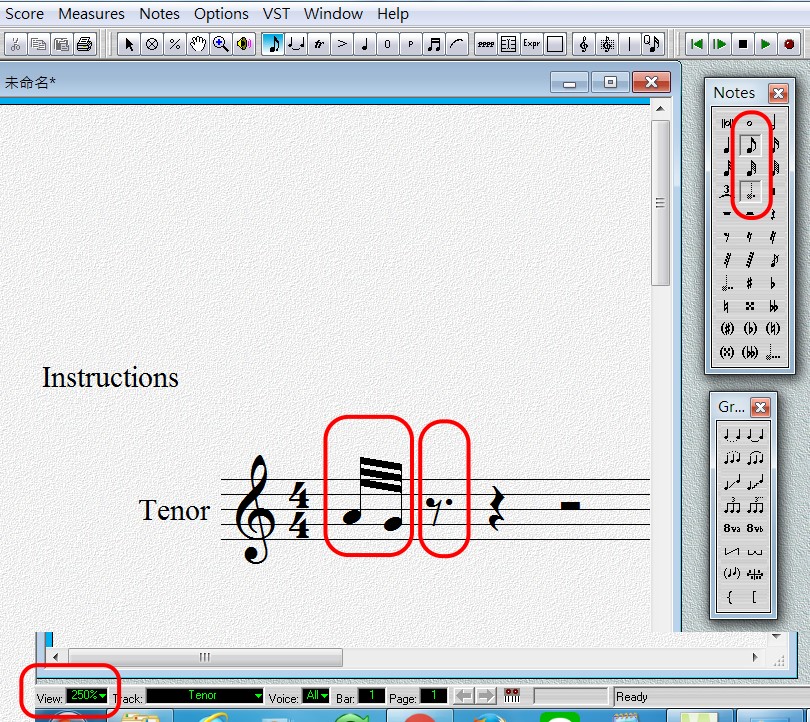
以下範例的歌詞是「看」,4聲,所以用 「2 個32 分音符 + 圓滑音 Slur + 連音 Tie」,合計為 16 分音符表現出來。
歌詞的主音是 sol,所以提高自 la 形成「裝飾音」。輸入音符後,系統會自動補齊該小節剩餘的時值。
而「看」這1拍,顯示剩餘的時值為:8 分音符加附點 (16 分音符)。
V5: Grace Notes 數位裝飾音記譜
V5 增加了 Grace Notes 數位裝飾音的圖示,可以選擇 32~132 分音符,同時按住裝飾音圖示,則視覺會與傳統總譜相同,視覺較為簡化,但實際播放的音值,32 和 132 分音符差不多。
作者記譜法,是給已有「聲中有字‧字中有聲」概念者。
Groups: Triplet, Tuplet 群組的 3 連音和多連音
Triplet 就是 3 連音;而 Tuplet 多連音,可以是:2, 3, 4, 5...多個音符和合為 1 拍。
聲部 Voice
共有 8 聲部。
V5:
Voice 在右上角。
Voice Colors. Use this option to set the colors for each voice. Use the Options>Show>Symbols in Colors menu command to enable or disable showing symbols in color.
修改顏色
Voice 2 預設為藍色,印譜後不易讀,建議改為紅色。
>Options>Preference>Color
必須選擇以下設定,否則不會出現色彩。
>Options>Show>Symbols in Colors
附點與連音 Tie 記譜
附點記譜必須同時按 2 個圖示。即同時選「8 分音符」與「附點」圖示。
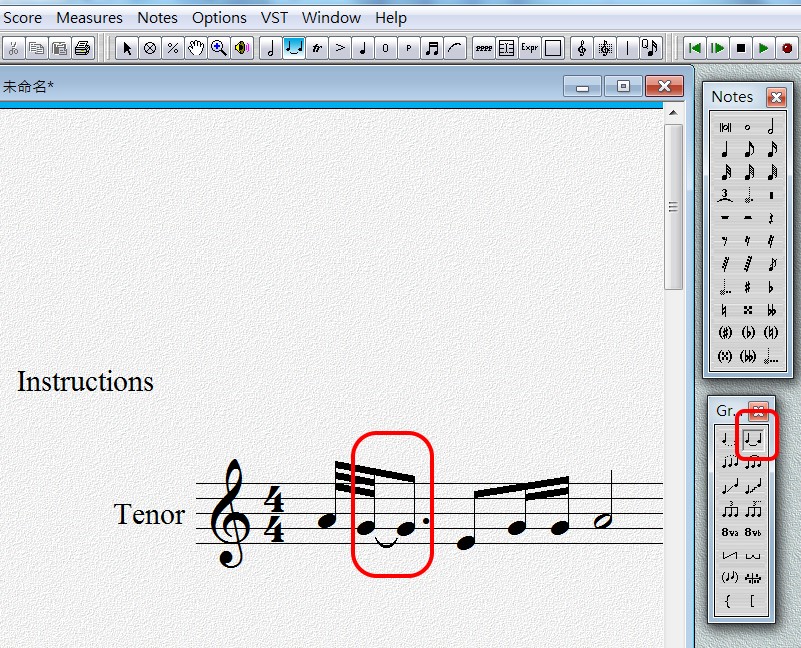
連音 Tie 表現同一個音符、連續時值。
圓滑音 Slur 記譜
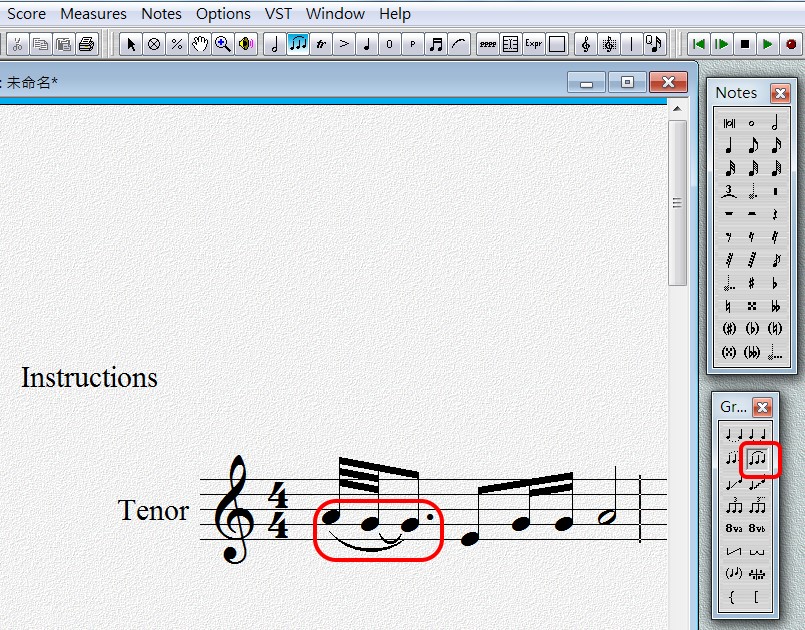
圓滑音 Slur 表現不同音符、連續不中斷。
Tracks Windows Settings 頻道視窗設定
V5: Track Inspector Panel 頻道控制面板設定
V4 Track View 改為 V5 的 Track Inspector Panel,部分功能並移到 Data View。
>Windows
>Tracks Windows
>V5 Track Inspector Panel
>Track Section
>Track Panel Sections
>Playback
Voice 設定
在
V4 中如只設 1 個,轉到 V5 後,可能無法再增設,並出現其他問題。
顯示各 Voice 之不同顏色
選取: Options>Show>Symbols
Patch 音色設定
範例為抓 Tenor Sax 音色。
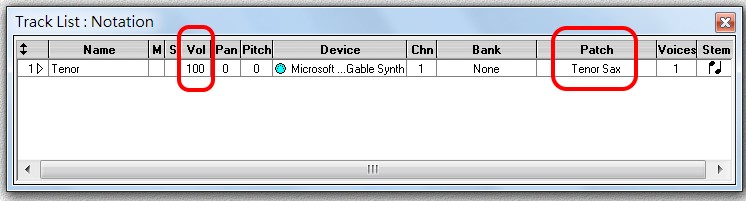
注意這應與 Track 設定相同,但在此才發生真正音色作用。
 匯入 Midi 檔不顯示 Patch
匯入 Midi 檔,在 Track Window 上有可能不顯示 Patch,而顯示 none,但其實有音色,要知道原來如何配器,可以看 Graphic Window 的右上角樂器名稱,然後再回來設定。
匯入 Midi 檔未顯示 Patch 之進階檢視
如果 Graphic Window 的右上角還是顯示 text ,如 Vocal,那就必須下載 Midi 編輯器如 Sekaiju、MidiEditor,或上傳線上檢視器 MIDI Inspector。得到畫面範例如下。
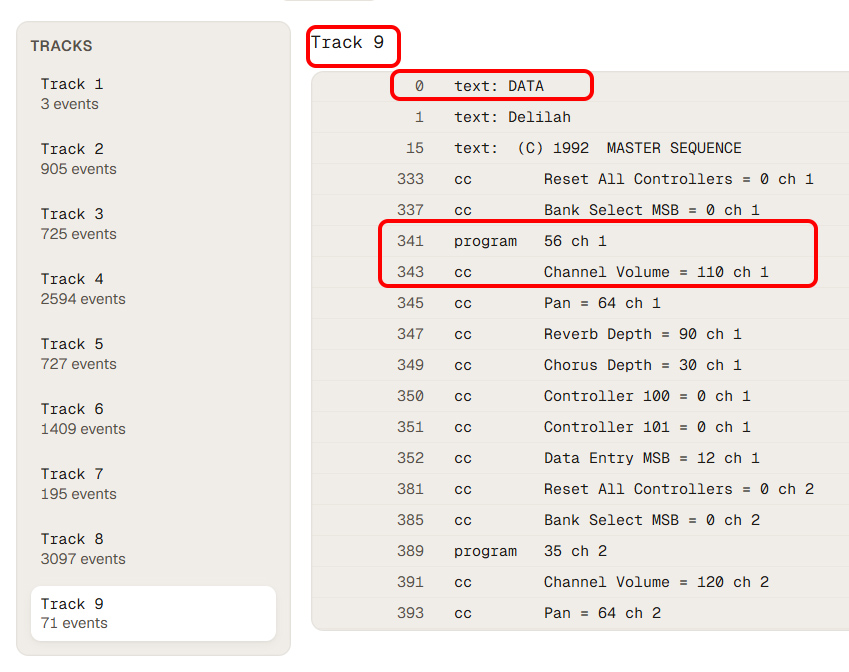
找到 text(名稱)為 DATA 的 Track,通常是最後一個 Track,在此為9;grogram 就是 pacth 的 GM 編號,56 就是Trumpet(小號),在 ch 1;起始音量是 110;注意,在其後,又有一個 ch 1,這是 patch ch 1 再包括、最多可有 16 個 ch 的 ch 1。
GM
編號和 OT Patch 編號不同
注意:GM 編號和 OT Patch 編號不同。
Vol 音量設定
避免輸出後產生爆音,宜注意以下參數。
主旋律通常建議設 100。
次旋律通常建議設 90。
其他副旋律通常建議設 80 以下。
Mute,Solo and Vol
可在此設定,或直接在總譜上按右鍵設定。
在不同的
Voices 上設不同的樂器
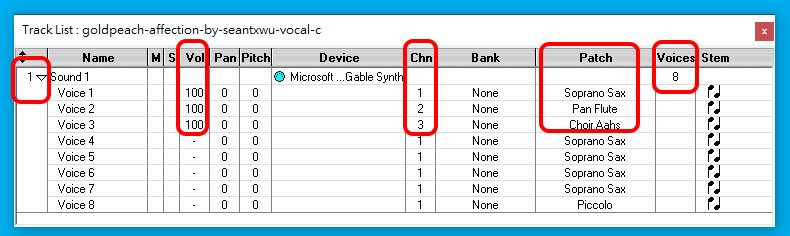
點 Track 編號旁「向下箭頭」拉開全部設定。
預設 Voices 有8個,可以更改,而 Chn 就會根據設定,顯示出有幾個。
Chn 預設都是「1」,按它可以改號碼,然後在右側 Patch 設定樂器。本例為設了3個,沒有設定的,就會和「Chn 1」相同。
再為每個 Voices 設定 Vol,如果遺漏,聲音可能很小。
 選擇全曲
track
選擇全曲
track
點選 Track Window, 再點選總譜的 name, 可選擇全曲 track,易於移動弦律,如轉移 8V。
V5:
介面分開 >Tool Pane >Symbols >Mixer
Score View 的右鍵「編輯」設定,優先於在面板的設定!
分軌與併軌
Explode Track 分軌
將
1 軌中的高低音分為 2 軌
將 1 軌中的高低音分為 2 軌,分別放在 2 個高低音譜表中,最簡單安全的做法,就是將高音譜表的低音剪下,再貼到低音譜表中。
以下各方法,經測試,均會發生錯誤。
打擊樂器軌分軌
Explode Track 分軌是將單一軌、或打擊樂器軌的各聲部分割為各自 1 軌。
>Tracks
>Explode Track
鋼琴譜分軌
>Tracks
>Separate Tracks
Choose this command to split a piano track into two separate tracks.
Note: This command is only enabled when the current track is a piano track. Use the Explode Track command
for non piano tracks
1. Select the first measure by double clicking on empty space.
2. Extend the selected range by holding down the shift key and double clicking on empty space in the the second measure.
3. Choose Tracks>Explode Track... menu option.
4. The dialog above appears.
5. Click on Done and two additional tracks will be added below and the notes will be split onto the tracks.
Split track into staves using clefs
The first number determines how many resultant tracks to use in exploding notes. The second field contains clef numbers for each resultant track. 0 - treble, 1 - bass, 2 - alto, 3 - tenor. If you leave this blank the current track's clef will be used. Eg. The pattern 02 would result in a treble clef track (0) and an alto clef track (2).
One note per staff
Check this box to make sure each track receives only one note. Any extra notes will then be distributed according to the Place extra notes settings.
Explode direction from
Set these options to determine how the notes will be placed on resultant
tracks.
· Top to bottom - notes are taken from the chord from top to
bottom.
· Bottom to top - notes are taken from the chord from bottom to
top.
Place extra notes
Use these options when there are more notes in a chord than the resultant
tracks. For example, a three note chord, with two resultant track would
leave one note. These settings tell Overture what to do with the remaining
note.
· In top staff - any remaining notes will be placed in the top
staff.
· In bottom staff - any remaining notes will be placed in the
bottom staff.
· Discard - any remaining notes will be deleted.
Place music into
· These option tell Overture where to distribute the exploded notes.
· Newly added staves above - Tells Overture to create new tracks above the
current track
· Newly added staves below - Tells Overture to create new
tracks below current track
· Existing staves starting at - Tells
Overture to use existing tracks at the selected track from the pop-up menu.
Display on Previous Staf/ Move to Previous Staff/ Move to Previous Staff/ Move to Next Staff 分軌後調整高低音配置
The Display on Previous Staff command does not actually move note from one staff to another, it only changes which staff displays the notes. If you wish to move note data to the previous staff, use the Move to Previous Staff.
>Notes>Display on Previous Staff
or
Notes>Move to Previous Staff
Connecting groups of tracks 併軌
>Barlines
· Group With Bracket. Select the bracket ([) to group independent staves into a loose grouping (for example, bracketing the four staves of a string quartet).
· Group As System. Select the system line (|) to group all the staves in a system.
· Group With Brace. Select the brace ({) to group the different staves representing a single musical instrument (like the two staves of a piano score).
播放與錄音 Transport, Playback, Record
V5: Center Buttons

Transport Buttons 播放

圖示箭頭,展開可有各種選擇。
Loop Button 反復播放

區間反復播放
Click the Loop button to enable loop mode. Loop mode allows you to loop measures during playback. To set a loop area, double click on the start measure and shift double click on the end measure. Now click on the Loop button. You can also drag the loop end point to a different measure.

定點反復播放
Ctrl[cmd] click the Loop button to set a position in the score that playback will begin. In the example below playback will always begin at the position of the yellow down arrow Use this when entering sections of music to preview what have just entered.

 簡捷學習:直接前往「和聲與和弦分析自然和聲:共鳴樂音與自然音階」
專題
圖形視窗 Piano Roll View
歌詞視窗 Lyric Window
和弦視窗 Chords Window
樂器發音應用
Articulations


