

Lyrics Window//Tools Panel- Lyrics Section
Overture 歌詞視窗的填入與編修
V5 :歌詞控制版
左上>工具控制版組 Tools Panel
>歌詞控制版 Lyrics Section
右上-總譜群組>Voice
 歌詞控制版事後編修,可能發生叫不出歌詞,必須在此選擇特定 Voice
V4 的歌詞視窗
Overture 的歌詞視窗實作:
>Window
>Lyrics window
歌詞視窗應用技巧包括:
預設是英文字,中文字不宜太小。如是 ANSI 中文,有可能不顯示。Unicode 則沒有這個問題。
將游標移至歌詞旋律處,會自動顯示Track, Measure,最好自Verse 2定位,避免中文字較大而重疊;第二行歌詞則從 Verse 4 定位。
Verse
最多為8,故如果超過 5 段,則還是按 2,3,4,5...定位,再用「水平調整桿」調整空間。
中文每字間要有空格,如有連音,每1音符應增加1空格。
Apply 歌詞視窗的填入
如貼入歌詞,要自 .txt貼入。按 <Apply> 後可調整位置。
歌詞的長度
手冊並無說明,但似乎每個 section 限55字以下。若超過,必須在後續小節重啟新 section.
Load 歌詞視窗的編修
日後要編修,至定位後,按 <Load>。
若要從歌詞視窗複製歌詞出來,每次複製,有數字限制,約80中文字以內。如超過,要分次複製。
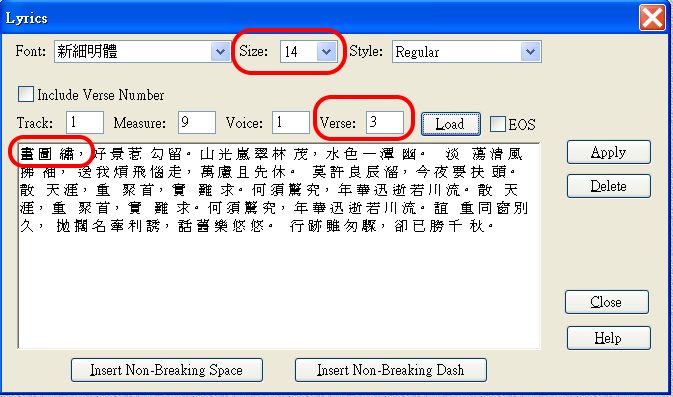
警告:Load
Verse A, Apply 到 Verse B
如果旋律已經寫好,會改變旋律。
應該將 Verse A 刪除,再輸入 Verse B。
Moving Lyrics 歌詞位置編修
可以調整歌詞垂直位置。
>Options
>Show
>Lyric
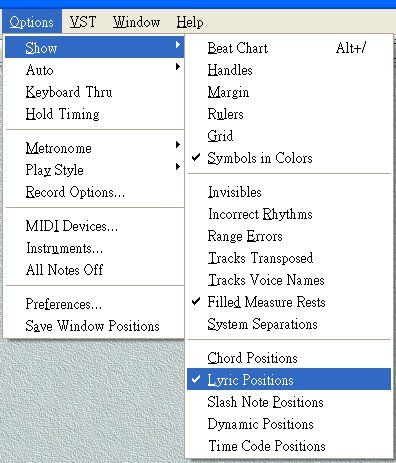
 垂直位置,應先由
Verse 1 調起,因下方會與上方連動。
垂直位置,應先由
Verse 1 調起,因下方會與上方連動。
歌詞水平位置,可直接以滑鼠移動。
You can move lyrics either individually or by line (verse).
Moving Entire Lyric Lines
When you select the Options>Show>Lyric Positions option, a small triangle is
placed to the left of each verse in the Score window— these are the lyric
position indicators. If there is one verse assigned to a staff, there is one
lyric position indicator. If there are three verses, there are three
position indicators.
Drag any position indicator up or down to change the vertical position of
all remaining verses for that staff in that system.
Alt[Option]-drag a position indicator up or down to apply the vertical
change to the same verse in every remaining system on that page.
Control[Cmd]-drag a position indicator up or down to apply the vertical
change to the same verse in every remaining system in the score.
Moving Lyrics Individually
Once you assigned lyrics to notes in a score, you can modify their
automatic placement by dragging any word (or syllable) in a score to a new
location.
You can constrain word movement to either the horizontal or vertical
direction by holding down the shift key before dragging a word.
Applying Different Fonts To Score/Lyrics 歌譜/歌詞字體編輯
歌譜字體編輯
按譜上的【Title】,就跳出對話窗,可編輯。
/歌詞字體預設
歌詞字體編輯可預設,避免每次做。
>Options → Preferences → Fonts
我中文通常設標楷14px。
還可以預設其他幾種字體。
歌詞字體手動編輯方法
1. 再歌詞視窗內,將編輯區選擇反白。
2. 調整各種字體屬性。
完成後,按 enter。
注意:copy 歌詞視窗,須用【ctrl + X】】【ctrl + V】
You can apply any font, size, or style to any or all characters in a lyric.
To change the font, size, or style of any text in a Lyrics window:
Drag across any character, word or group of words in the Lyrics window.
Select the font you want from the Font drop-down list.
Select the font size you want from the Size drop-down list.
Select the font style you want from the Style drop-down list.
Click the Apply Lyric button.
The font changes are applied to your score.
The Note pane is full-size and the Controllers pane is hidden at the bottom. Drag the gray splitter bar up to display the Controllers pane.


