

樂譜與數位記譜
打譜軟體 Overture 應用簡介
Overture 輸出入設備設定 Midi Devices - Overture 存檔、轉檔與匯入 Midi 檔 - Overture 列印 pdf 檔 - Overture 外掛音源 VST, Virtual Studio Technology
Score 總譜與 Overture
MIDI 軟體創作就是使用打譜軟體,以總譜方式,直接輸出各種樂器的聲音。
Overture 是 Sonic Scores 公司( 5.0 版後改名,之前公司名為 GenieSoft) 出品的專業打譜軟體,它能提供各種五線譜上的記號,整理譜面及輸出列印。在寫譜的時候當然可以邊聽邊修改,是目前最流行的打譜軟體之一。其他可用打譜軟體如附錄。
 Overture
V5 與 V4 相容性
Overture
V5 與 V4 相容性
Overture 5.0 與 4.0 相容性很高,僅為功能增加,故本講義基於 Overture 5.0 與 4.0 相容者,仍以 4.0 為例,僅 5.0 具備之功能,則特別以紅底標出。
V5 主要特色:總譜設定與分譜輸出
控制列 Control Bar 右群組
控制列 Control Bar 右群組圖示:
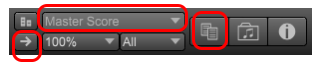
Master Score 總譜檢視
包括各種頁面呈現,與「線性檢視」Linear View,即沒有分頁。
左側箭頭:→交換「線性檢視」與「總譜檢視」。
 線性檢視
Linear View:可作總譜檢視之多小節 Debug
線性檢視
Linear View:可作總譜檢視之多小節 Debug
「總譜檢視」可能因為複製剪貼、measures setting 小節設定、演奏效果、OT4 匯入...而顯示不正常,可由「線性檢視」發現問題並修正。
總譜/分譜按鈕 Score and Parts Button -Active Parts 分譜檢視
雙頁圖示即為 總譜/分譜按鈕 Score and Parts Button,按下後顯示Active Parts 分譜檢視。
V5 主要特色為可以出分譜。
右上>總譜設計鈕 Score Layout
>Score
類 4.0 的 Score 命令。
>Active Parts 分譜輸出
>Master Score
>各分譜
>Layout: 比 V4 多了可以區間設計。
輸出分譜
有幾種方式
單一分譜
右上: >Score Layout >Active part
點選分譜名稱,>另存圖示
編輯分譜
有 3 欄:Part Name, Voice, Divisi
均在欄位上 Double click 編輯。
萃取分譜
>Create New Part button
多個分譜
>File >Extract Parts
Generate part names using:
Use this text field to format the file
name for each part.
Each of the following symbols can be used to
format the file names.
%f - The score filename
%t - The score
title
%p - The part name
%i - The part number
For example,
a score with the title "Broad Horizons" the default %t-P%i-%p
produces extracted parts with
names like "Broad
Horizons-P1-Flute.ovex", "Broad Horizons-P1-Oboe.ovex"
NOTE: We
recommended that you use the %i symbol to force names to be stored
in score order, because
the operating system will display them in
alphabetical order within the folder.
分譜名稱
注意:必須在總譜時設定,如果輸出為獨立分譜檔案後,便不能修改。
點選分譜,>Text >Part Name
V4 資源
試用版下載:https://seantxwu.pages.dev/Tools/ Midi/SonicScores/overture4demo.exe
外站試用版下載:http://geniesoft-overture.software.informer.com/download/
外站 Mac 試用版下載:http://download.cnet.com/Overture/3000-2170_4-48648.html
另有中文版下載,但因著作權說明模糊,不優先建議。
Overture 介面設定
A general organization of all staves of all instruments.
A Brief of its interface.
打譜軟體 Overture 介面簡介。
File > New 開新檔案
預設會自動開啟。
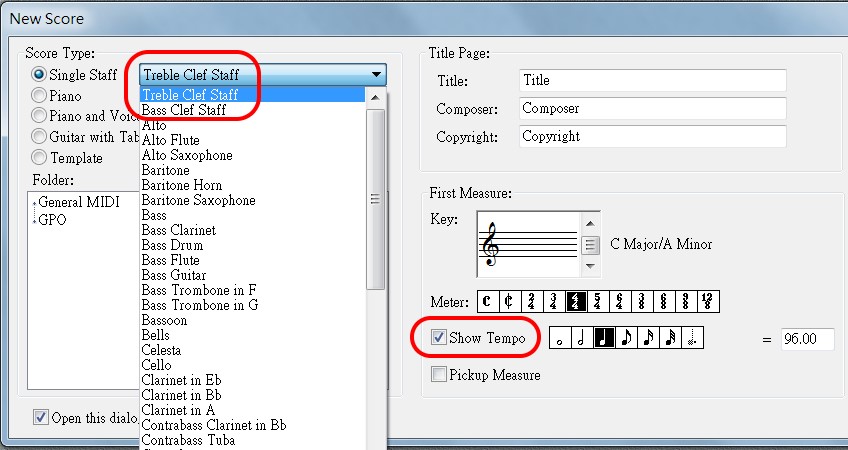
Score Type 總譜型態
個人自由創作通常單獨開高音、或低音譜表。
Template 範本
如果是為固定樂團編曲,則有多個範本可選擇,存在2個資料夾中。
Tittle Page 標題
標題、作者、著作權。
Show Tempo 顯示速度
通常建議顯示速度。
Pickup Measure 前置小節
Pickup Measure 前置小節通常為不完全小節。
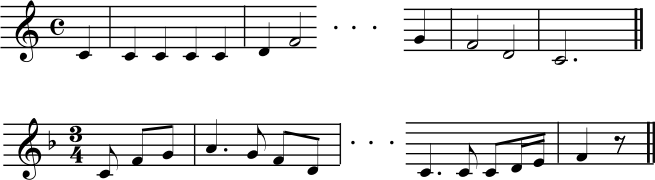
同理,也有 Pickup Notes 前置音符。
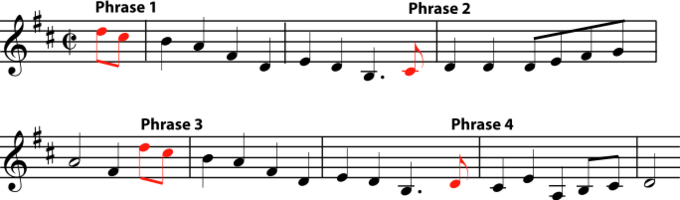
古典樂理對 Pickup Measure 前置小節有一些約束,今日創作可不受限,也無須預設。
Overture 介面最佳化
工具列 Bar 與選擇面版 Palette
Overture 有多個工具列 Bar,工具列上的圖示可以拉出來,單獨成為選擇面版 Palette。
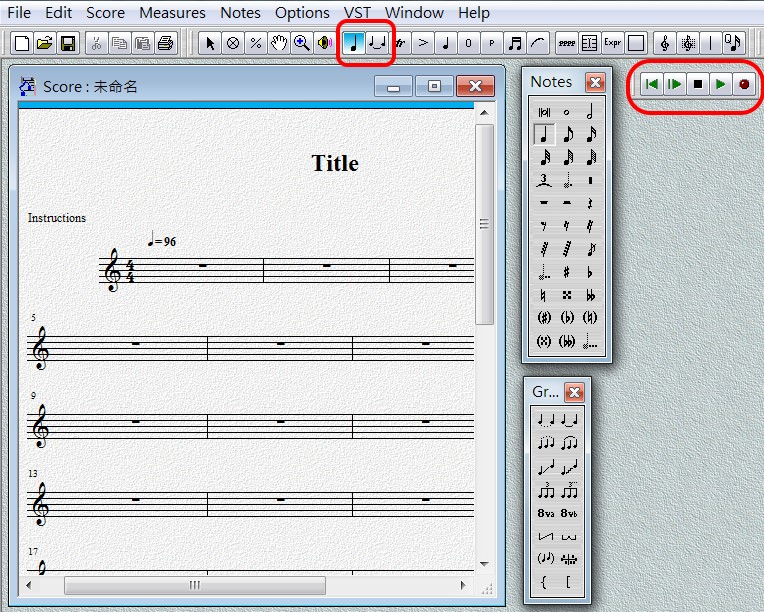
Notes and Groups 音符與音群選擇面版
將 Notes and Groups 音符與音群選擇面版展開,最利於編曲。
編後,按播放器,可試聽。
三連音
Notes and Groups 音符與音群工具列均可設計三連音,除非事後修改,原始創作時,以Notes 音符工具列的:「音符+3連音符」設計較佳。
Head 符頭選擇面版
工具列上第五個是 Head 符頭選擇面版,可以改變 notehead,由於直覺會到 Note 選單中找,故應特別注意。這個對於:唸誦特別有用,打擊樂器的 channel 會自動提供選擇符頭。
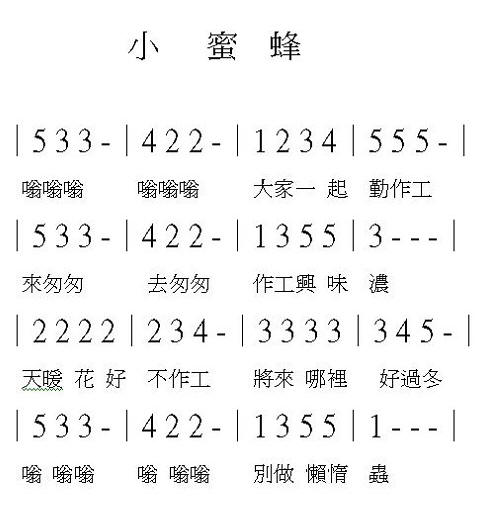
將簡譜轉為五線譜練習
Overture 輸出入設備設定 Midi Devices
Overture 輸出設備包括音源器與錄音介面。音源器可能是軟體、或硬體的合成器 Synthesizer。
Overture 輸入設備如另採用硬體,通常是 Midi 鍵盤與 Midi 訊號處理介面。
錄音介面與 Midi 訊號處理介面,通常合為同一 Midi 卡。
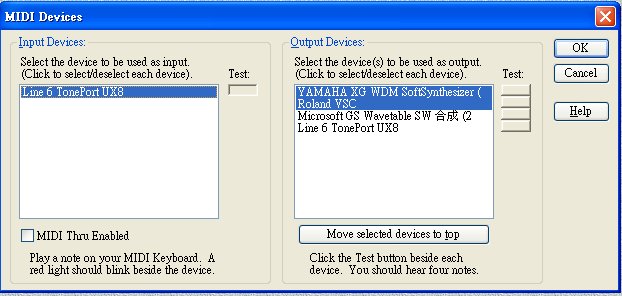
如無外接音源,會抓內建微軟合成器。
Assign playback output that may be a hardware or softsynth.
1. Roland VSC: It sounds close to TTS that is build in Sonar.
2. Yamaha softsynth XG: It use internal recording with Sonar that may record noise.
The selected (highlighted) output devices will appear in the 'Track Window'.
 You have to
close-then-reopen Overture after change the midi device.
You have to
close-then-reopen Overture after change the midi device.
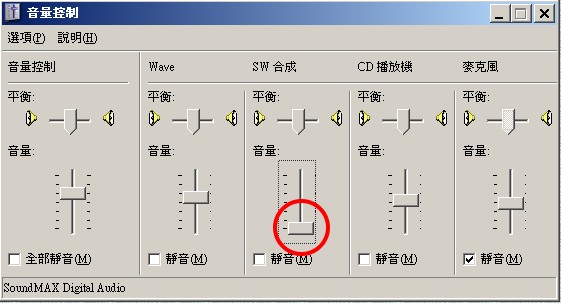
Overture 無聲原因 Overture If Mute
If you were using Media Player before opening Overture, the Windows would close the SW control and made Overture mute.
Overture 存檔、轉檔與匯入 Midi 檔
Overture 的附檔名為 .ove,對 Midi 轉檔與輸出入如下。
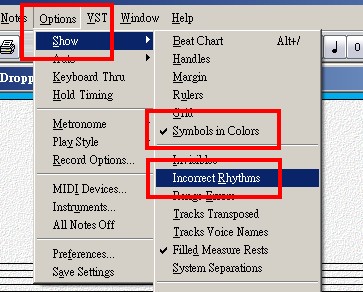
Before export to MIDI file
Check rhythms.
More: It is a good idea to show symbols in colors.
 Convert .mid to .ove
Open > Quantize with <Alt>
Track 預設為箭頭,表示匯入,點選改為無箭頭號,表示不匯入。
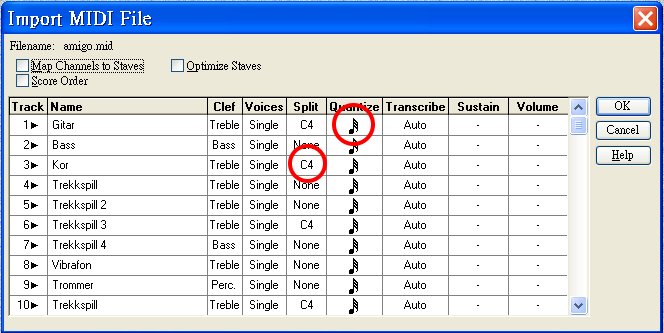
Map
Channels to Staves
在 4.0,是否勾選,差異不大。
在
5.0,必須勾選,否則各軌會混到同1聲部中。
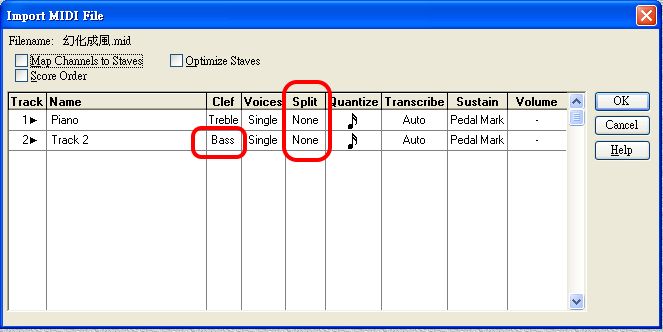
Convert Piano Score 鋼琴譜左右手分割
>Clef
Change "Track 2" into Bass. The default is "Treble" that will resolve in wrong clef.
>Split
Chang them to "None". The default is "C4" that will resolve in producing 4 tracks for the normal 2 tracks.
鋼琴存在.mid時,若以2軌存放,讀出時要分高、低音譜;預設是高音、要改為低音。
Overture 會自動偵測,如果認為是鋼琴譜,而以1軌存放,會自動預設以"C4",分割成左右手高、低音譜。如果並非1軌,要改為"None",否則會變成4軌。
誤分割成 2 軌.改回 1 軌
當 Midi 檔的非鋼琴軌卻指定為鋼琴樂器時,匯入時很容易誤分割成 2 軌。
5.0 可改回 1 軌:
>Inspector
>Track
>Settings
>Normal Staff
但如果低音部有旋律,會消失。所以必須在前1步驟「Split
None」,低音部變空軌後,再作此動作。
或者,改為吹管樂器,會自動刪除低音部。
>Track
>Playback
>Instrument
Overture 匯入 Midi 檔_調號設定與應用 Set Key Signature
匯入 Midi 檔案時,調號並未設定,五線譜呈現如下:

根據臨時記號,知道其為 D 調。
將游標移至第一小節。
>Measures
>Set Key Signature
跳出對話盒,使用< New Key>的上下箭頭,向上升2次,形成 D 調。
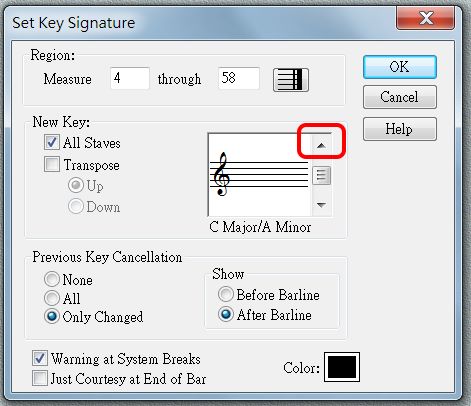
調號設定後,結果如下。

匯入 Midi 檔不顯示 Patch
匯入 Midi 檔,有可能不顯示 Patch,解決方案先看 Track Window 的音色設定,再看 Graphic Window。
Overture 列印 pdf 檔
Overture 可列印 pdf 檔。
PDFCreator 免費版,不用重開機即可列印。
在〉列印
有多項列印選擇。
如果所安裝的版本,沒有附 pdf 列印程式,可以下載
>Engraver
Overture 外掛音源 VST, Virtual Studio Technology
VST 是 Steinberg 開發的數位音樂錄音技術與標準,用來開發各種 VSTi 樂器與VST效果器。
以下設定必須開啟樂譜檔案才可使用。
VST>Audio Preferences
Select ASIO (Audio stream input output) for professional playback.
Note: Overture may
not support 48 k and 24 bit.
>Instrument Rack
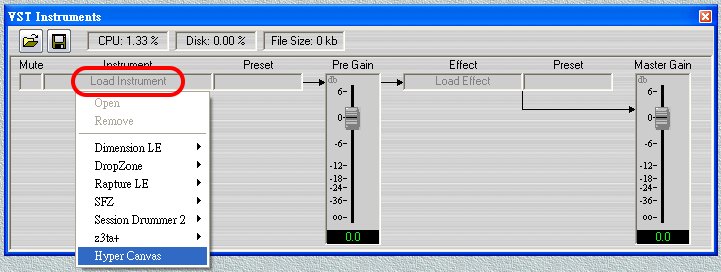
Click 'Load Instrument', it pops up a list of all instruments and plug-ins.
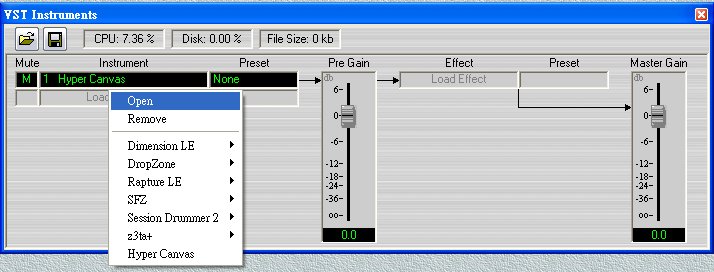
Click the instrument then:
>Open for showing the mixer.
>Remove the VSTi from the rack
or add another VSTi.
Note: VSTi is only
for>Remove the VSTi from the rack
or add another VSTi.
Note: VSTi is only
for midi track while VST SF is for audio track.
線上打譜軟體
MuseScore
https://musescore.com/
MuseScore 提供 2 個站臺,理由如下。
The "Musescore.com" site provides space for users, who want to upload more than five Musescore files, for a fee. The "Musescore.org" site, offers the free Musescore software and gives free support to users with the forum.
SolMiRe
SolMiRe is a collection of MIDI tools available online and for free. Using SolMiRe MIDI tools and just your web browser you can convert MIDIs to MP3, edit MIDIs, generate and print sheet music, detect chords and print tablatures.
簡譜與混合樂譜
簡譜對於歌曲,以及移調有優勢。
但對於樂團編曲較不便。
數位網路混合樂譜
在數位網路時代,許多打譜軟體無法顯示底線,而為了簡化樂譜,在製作混合樂譜時,網路習慣約定採用:
1‘ 表示 Do 高 8 度;1“ 表示 Do 高 16 度。
(): 表示4分音符
統雄老師增加建議:
[]: 表示2分音符,有時處理 3 連音...等,較為明確方便。
 簡捷學習:直接前往「和聲與和弦分析自然和聲:共鳴樂音與自然音階」
專題
圖形視窗 Piano Roll View
歌詞視窗 Lyric Window
和弦視窗 Chords Window
樂器發音應用
Articulations


